
Internet Speed Test — BTT Launcher Plugin
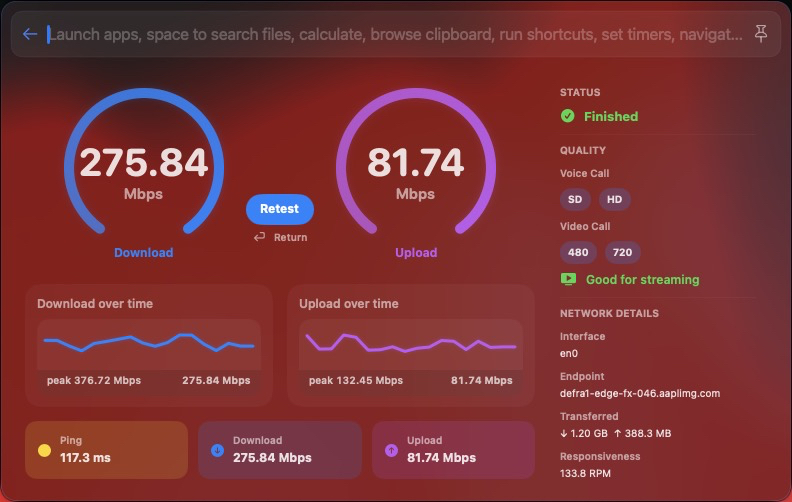
I’ve created a native Internet Speed Test plugin for BetterTouchTool Launcher.
It uses Apple’s built-in networkQuality command to measure your internet connection directly inside a polished BetterTouchTool Launcher interface. No Homebrew packages or third-party speed-test utilities are required.
Features
- Live download and upload speed meters
- Download and upload history graphs
- Final download and upload results
- Peak throughput values
- Ping and idle-latency information
- Network responsiveness results
- Active network interface details
- Test endpoint information
- Transferred-data statistics
- One-click Retest button
- Continues testing when BTT Launcher is dismissed
- Restores the active or completed test when reopened
- Native SwiftUI interface
- Uses Apple’s built-in
/usr/bin/networkQuality
Requirements
- macOS with
/usr/bin/networkQuality - BetterTouchTool with Swift Launcher plugin support
- An active internet connection
No Homebrew packages, Python modules, or additional command-line tools are required.
Installation
The plugin has been submitted to the official BetterTouchTool Plugins repository:
Until it becomes available through the official plugin gallery, you can install it manually.
-
Download
SpeedTestLauncherPlugin.swift. -
Copy the file to:
~/Library/Application Support/BetterTouchTool/Plugins/
-
Restart BetterTouchTool, or wait for it to detect the new plugin.
-
Review and approve the Swift plugin compilation prompt.
-
Open BTT Launcher and search for:
Test Internet Speed
-
Select the result to open the speed-test dashboard. The test starts automatically.
Usage
Open BTT Launcher and search for Test Internet Speed.
The plugin automatically starts a new test and displays live network activity while Apple’s networkQuality utility measures the connection.
You can dismiss BTT Launcher while the test is running. The test continues in the background, and reopening the Launcher item displays its current state or completed results.
Select Retest whenever you want to run another test.
How It Works
The plugin runs:
/usr/bin/networkQuality -c
It parses the results and displays them in a native SwiftUI dashboard.
While the test is running, the plugin also samples local network-interface counters to animate the live meters and graphs. The final measured results come from Apple’s networkQuality utility.
Privacy and Permissions
The plugin:
- Runs Apple’s local
/usr/bin/networkQualitycommand - Uses
/usr/sbin/netstatto read local interface counters - Requires network access to perform the speed test
- Does not require clipboard access
- Does not read or write personal files
- Does not require an account or API key
- Does not use a third-party speed-test CLI
The source code is available for inspection before installation.
Notes
- Live meter values are based on total traffic observed on the active interface, so other network activity may affect them.
- Final download, upload, latency, and responsiveness values are produced by Apple’s
networkQuality. - Results can vary depending on Wi-Fi conditions, VPN usage, network congestion, server selection, and other active downloads.
- The test may consume a significant amount of data.
- If the default interface has not yet been identified, live sampling initially uses
en0.
GitHub Links
Feedback
Testing and feedback are welcome, especially for:
- Different macOS versions
- Wi-Fi, Ethernet, and VPN connections
- Very fast or slow internet connections
- Different network interfaces
- Visual or layout issues
- Unexpected
networkQualityresults
If you encounter a problem, please include your macOS version, BetterTouchTool version, connection type, and any error shown by the plugin.